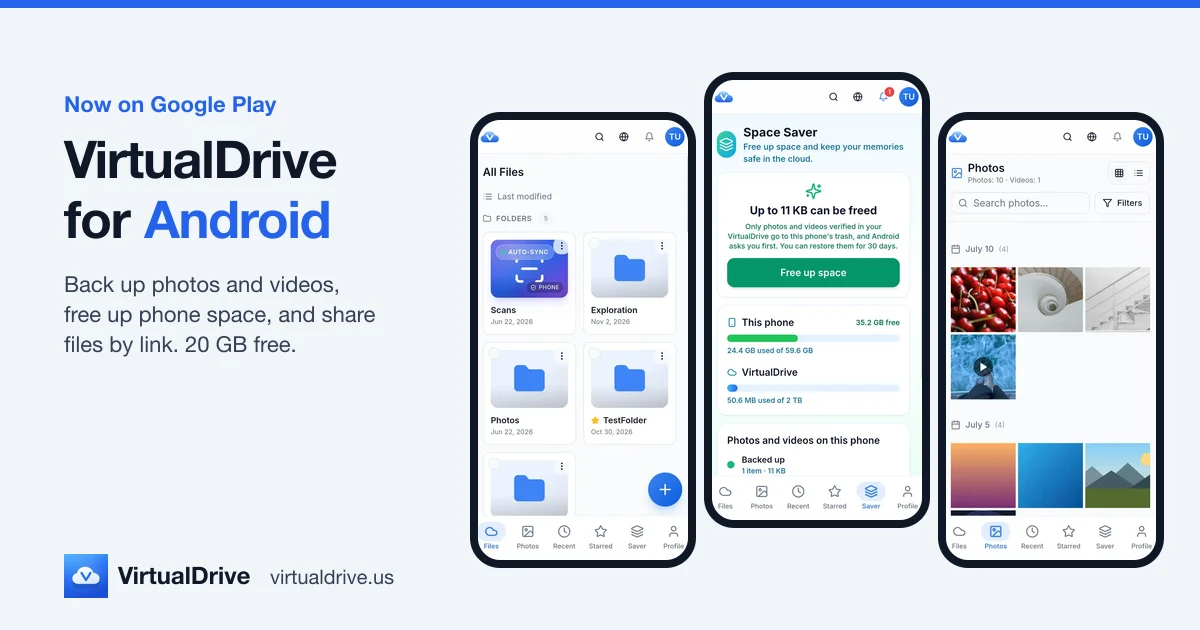
The VirtualDrive Android app backs up your photos and videos on its own, frees up phone space once they're safely stored, and keeps the rest of your files a tap away, with 20 GB free on every account. It is the same account and the same storage you use on the iPhone app and on the web.
This post walks through what the app does, with screenshots taken on an Android phone, and is plain about what it doesn't do yet.
- Camera Backup: automatic backup of photos and videos, in the background.
- Space Saver: clears backed-up photos off the phone, with Android asking you first.
- Your files: folders, search, previews, upload from any app, document scanning.
- Share links: for files and folders, with optional expiry and password.
- Offline files: keep chosen files on the phone so they open with no signal.
Get VirtualDrive for Android
Free on Google Play. 20 GB included, no credit card, no ads.

On a computer? Open the Play Store listing and install it to your phone from there.
Camera Backup: photos and videos, backed up automatically
Turn on Back up this phone and VirtualDrive uploads your photos and videos to a Camera Backup folder in your account. It starts with what's already on the phone, oldest first, then keeps up with new shots.
- Runs in the background. You don't need to keep the app open. Android runs the backup about once an hour, and shortly after new photos or videos appear.
- Original quality. Files are uploaded as they are on the phone, with no recompression.
- Wi-Fi only, by default. Switch it off if you're happy to use mobile data. Scheduled backups also wait when the battery is low.
- Videos are optional. The Include Videos switch leaves them out if you only want photos backed up.
- No duplicates. Photos that are already in your VirtualDrive are skipped, so turning backup on again after a reinstall doesn't upload everything twice.
- Back up now and pause. Start a pass yourself, or pause backup and resume it later.
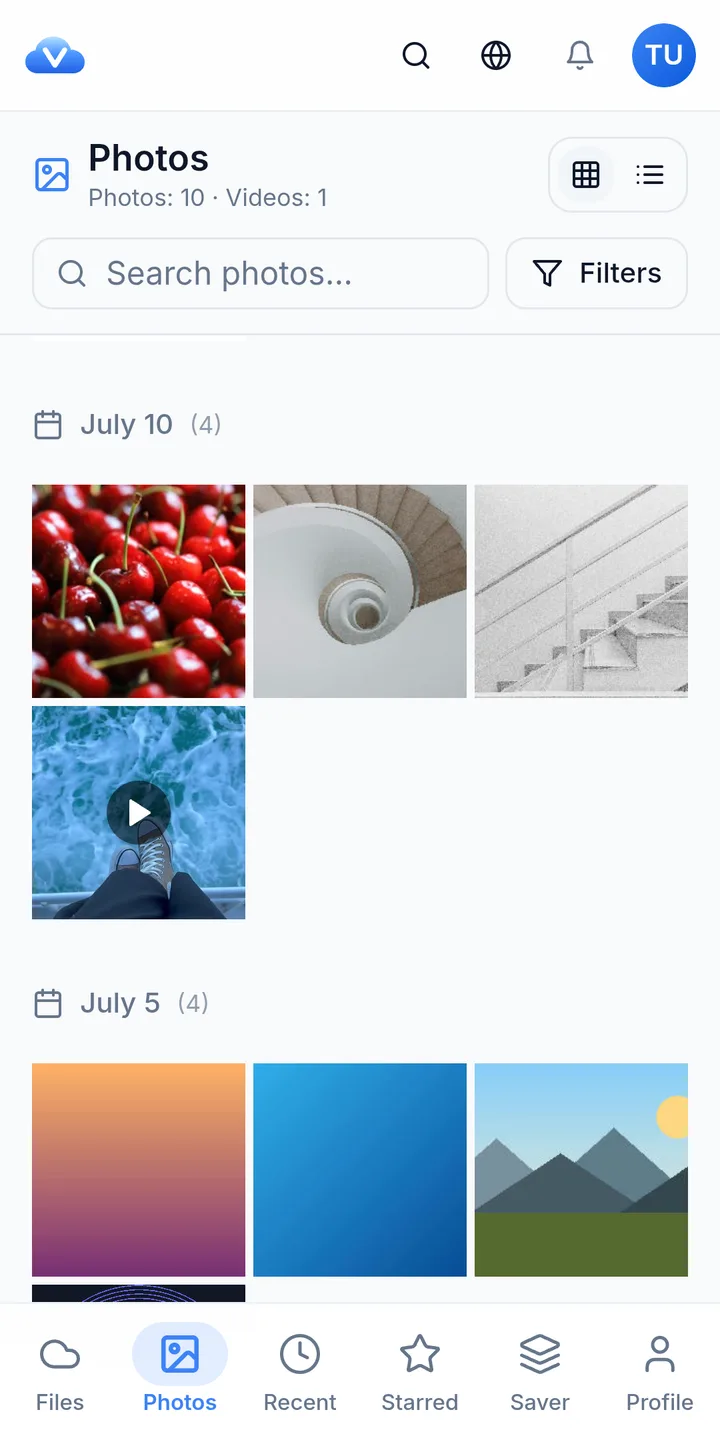
Two things to know. Backup covers the phone's photos and videos as a whole, including screenshots and saved images; there's no album picker yet. And if an upload is interrupted, that file is retried from the start on the next pass rather than resumed partway.
If you're deciding how much space your library needs, our guide to how much cloud storage you need has rough numbers, and cloud storage for photos and videos covers what to look for in a backup.
Space Saver: free up phone space after backup
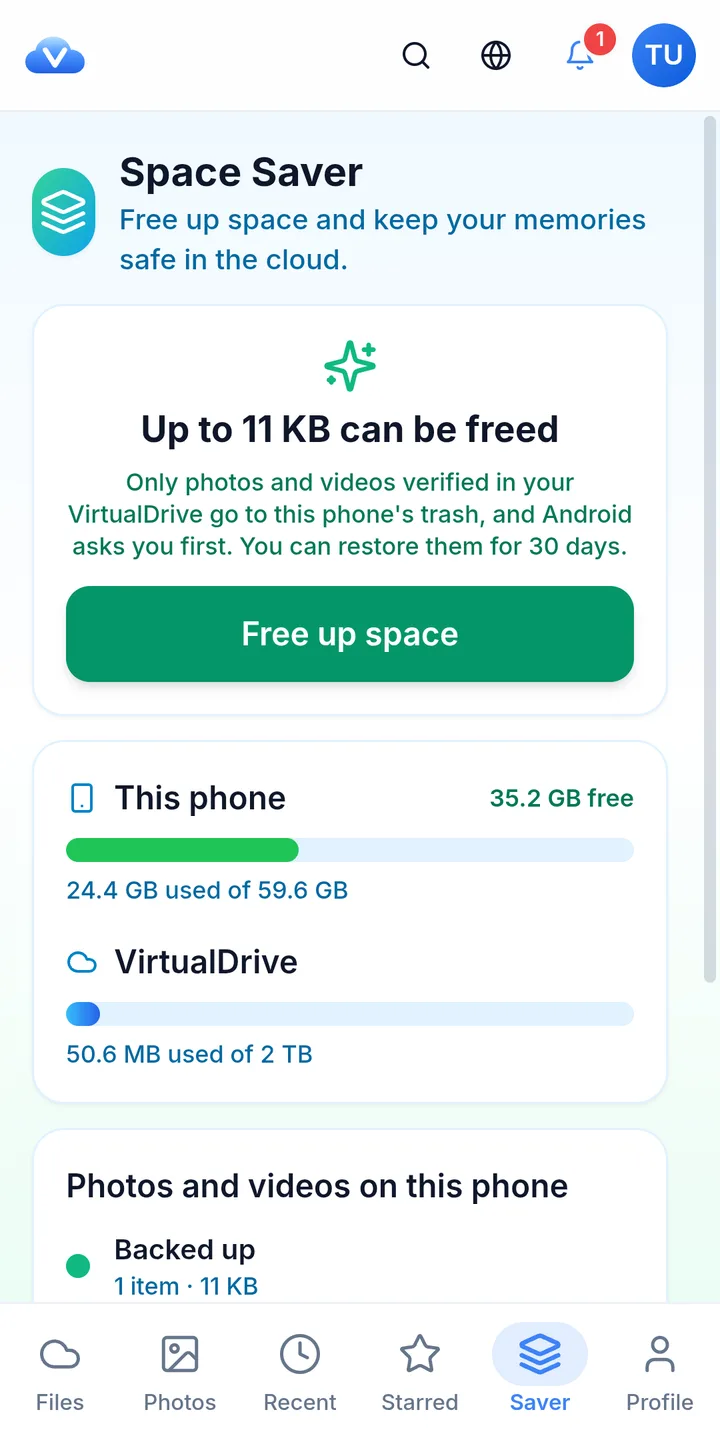
Once your photos are backed up, the copies on the phone are taking space you may want back. Space Saver has its own Saver tab at the bottom of the app. It shows how much space can be freed, how full the phone is, and which photos and videos are backed up and which aren't yet.
How it decides what is safe to remove
- A photo is only offered if VirtualDrive holds a copy with the same content fingerprint and the same size, and that copy isn't in the trash.
- If the review has been open for a while, it checks again before anything moves. If it can't reach VirtualDrive, nothing is deleted.
- Android asks you first with its own confirmation.
- Items go to the phone's trash, where you can restore them for 30 days from your gallery or Files app.
Space Saver needs Android 11 or later, because it relies on Android's own trash. On older versions the app still backs up your photos; it just can't move them to the trash for you.
Your files, on your phone
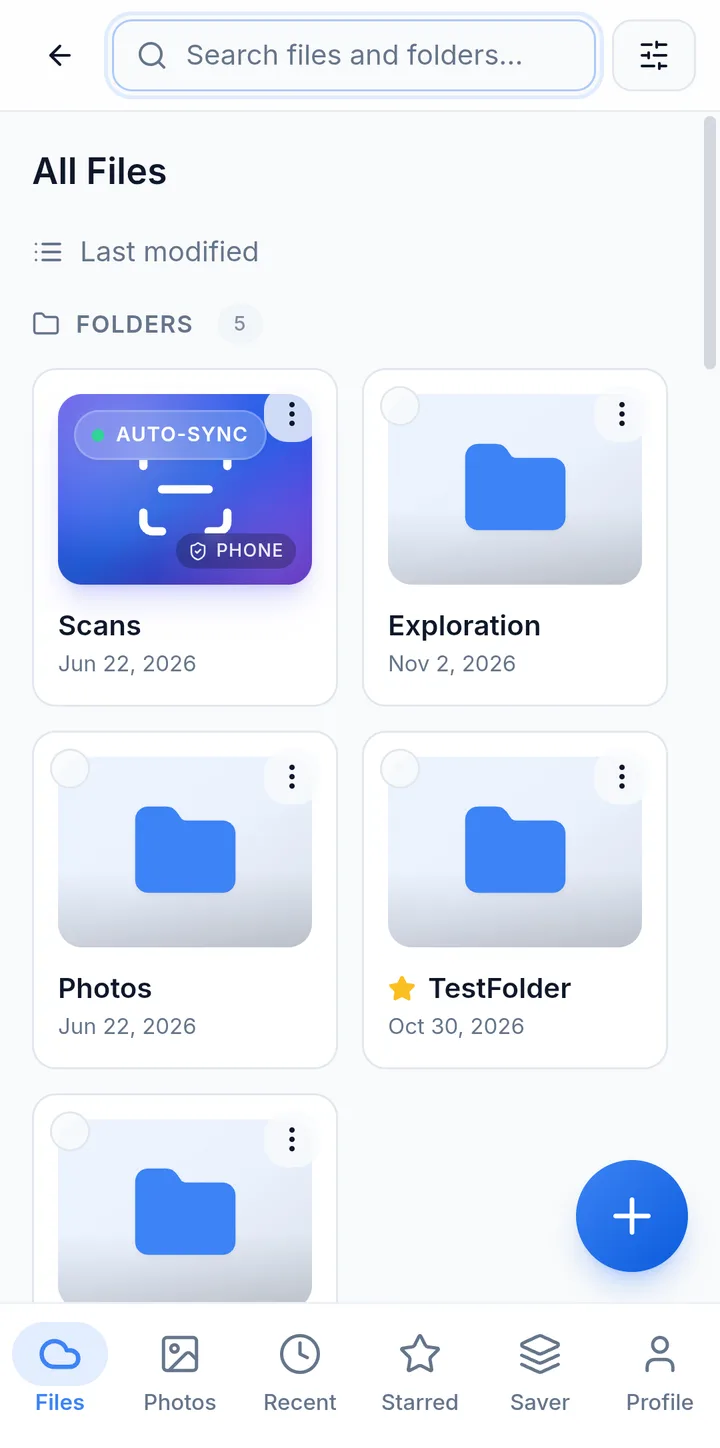
Everything else in your VirtualDrive is in the Files tab: folders, documents, videos, PDFs. Open photos, videos, PDFs and documents right in the app without downloading them first. Rename files, move them between folders, star the ones you use often, and restore anything you deleted by mistake from the trash.
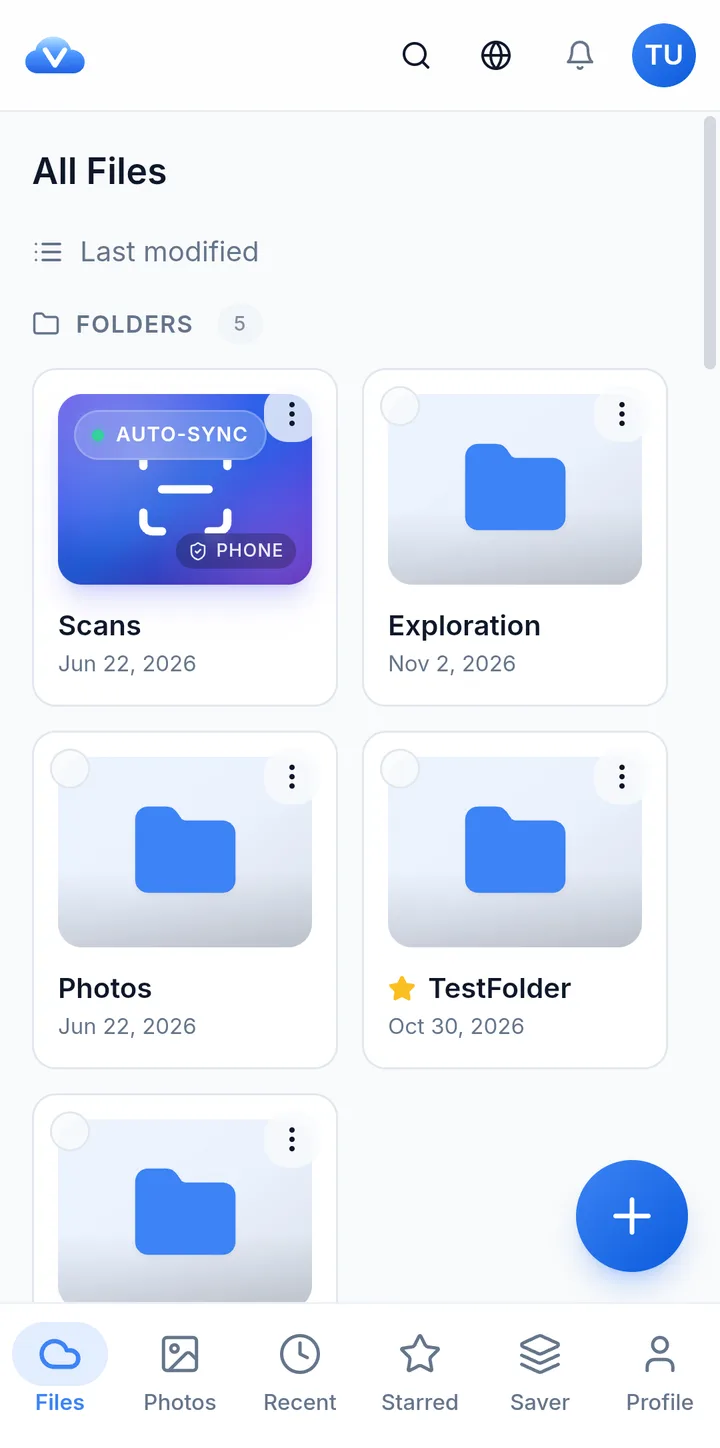
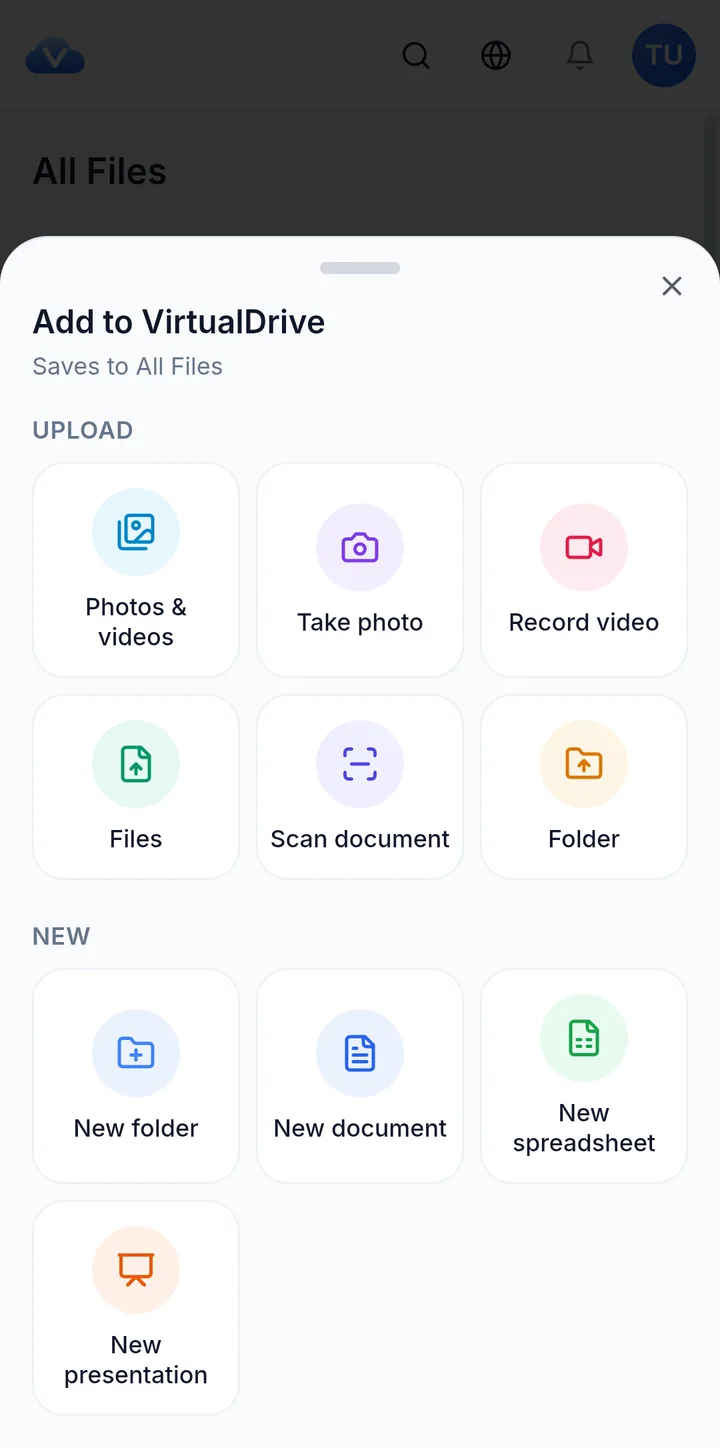
- Upload from the phone: photos and videos, any file, or a whole folder. Free accounts can upload files up to 500 MB each.
- Scan documents to a PDF, with edge detection, saved to your Scans folder.
- Share to VirtualDrive from other apps: pick VirtualDrive in Android's share menu and choose the folder to save into.
- VirtualDrive in Android's Files app. Your cloud files show up in the system Files app and in other apps' file pickers, so you can attach or open them from anywhere.
- Create documents, spreadsheets and presentations inside the app.
Offline files
For files you need on a plane or underground, tap Make available offline. The app keeps a copy on the phone and lists it under Offline files. Those copies open with no connection, can be opened in other apps with Open with…, and are kept up to date in the background. You can limit offline downloads to Wi-Fi.
Offline works for individual files, not whole folders.
Share links for files and folders
To send something to someone who doesn't use VirtualDrive, create a link. Links work for single files and for whole folders, and the person you send it to doesn't need an account.
- View only or download: choose whether people can download the files or only view them.
- Expiry: never, 1 hour, 24 hours, 7 days or 30 days.
- Password: optional, at least 6 characters.
- Invite by email as a viewer or an editor instead.
- Send it your way: the Share button hands the link to Android's share menu, so you can paste it into any messaging app.
- Remove the link at any time and it stops working.
For work files, our guide to secure file sharing with clients goes through when to use a password and an expiry. Step-by-step help is in Create a share link.
Private and secure
- Encryption: AES-256 at rest and TLS in transit.
- App Lock: ask for your fingerprint, face or screen lock when opening VirtualDrive.
- Two-factor sign-in with an authenticator app.
- No ads, your data is never sold, and your files are never used to train AI.
- Delete your account and every file from inside the app, any time.
VirtualDrive is not end-to-end encrypted. More detail is on our security page.
20 GB free, and what it costs if you need more
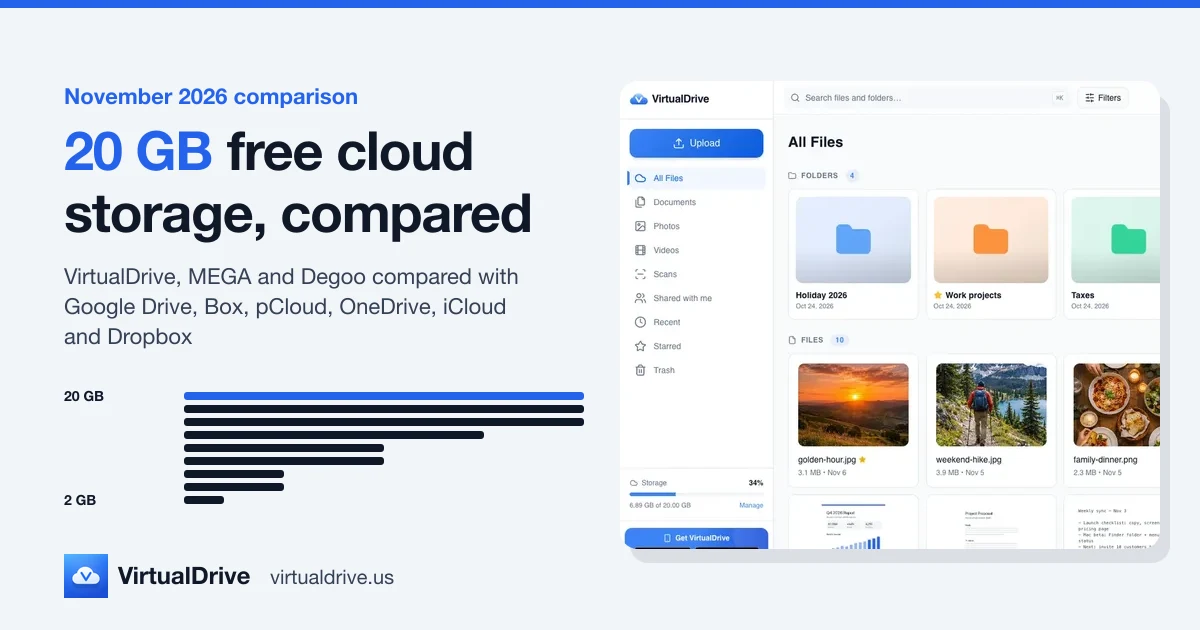
Every account starts with 20 GB free: no credit card, no trial timer and no ads. Sign in with Google, Apple or an email address. How 20 GB compares with other free plans is in 20 GB free cloud storage, compared.
If you outgrow it, Pro gives you 2 TB and Ultra 5 TB. In the Android app, upgrades are billed by Google Play at Google Play's price for your country; on the web at virtualdrive.us/pricing Pro is $9.99 a month. Either way it's the same account, and everything you've uploaded stays put.
Getting started
- Install VirtualDrive from Google Play (Android 7.0 or later).
- Sign in, or create a free account first on the web.
- Open Profile → Camera Backup, turn on Back up this phone, and allow photo access.
- When the first backup finishes, open the Saver tab to free up space.
Get VirtualDrive for Android
Free on Google Play. 20 GB included, no credit card, no ads.
On a computer? Open the Play Store listing and install it to your phone from there.
Frequently asked questions
Is the VirtualDrive Android app free?
Yes. The app is free on Google Play and every account starts with 20 GB of storage, with no credit card and no ads. Paid plans (Pro 2 TB, Ultra 5 TB) are optional and are billed through Google Play when you upgrade in the app.
Does Camera Backup work when the app is closed?
Yes. Once you turn on "Back up this phone", Android runs the backup in the background: about once an hour, and shortly after new photos or videos appear. By default it only uploads on Wi-Fi, and scheduled backups wait when the battery is low.
Can Space Saver delete a photo that isn't backed up?
Space Saver only offers photos and videos that VirtualDrive can match to a backed-up copy: same content fingerprint and same size. If it can't reach VirtualDrive to confirm, nothing is deleted. Android then asks you before anything moves, and the items go to the phone's trash, where you can restore them for 30 days.
Can I choose which albums to back up?
Not yet. Camera Backup covers the photos and videos on the phone as a whole, including screenshots and downloaded images. You can leave videos out with the "Include Videos" switch, and pause backup at any time.
Which Android versions are supported?
The app runs on Android 7.0 or later. Space Saver, which moves backed-up photos to the phone's trash, needs Android 11 or later because it uses Android's own trash.
Can I open my files without a connection?
Yes. Choose "Make available offline" on a file and the app keeps a copy on the phone. It opens with no signal and is kept up to date in the background. Offline copies are removed when you sign out.
Is VirtualDrive end-to-end encrypted?
No. Files are encrypted at rest with AES-256 and in transit with TLS, and you can turn on two-factor sign-in and App Lock, but VirtualDrive is not end-to-end encrypted.