Everyone hits the wall eventually: the video is 2 GB, the design hand-off is 40 layered files, the client's mail server bounces anything over 25 MB. So you reach for a transfer site, upload for twenty minutes, email the link — and a week later the client asks for the files again because the link expired. Sending large files in 2026 is a solved problem, but the default tools solve it badly.
Why email still can't do it
Gmail and Outlook cap attachments at 25 MB and 20 MB. Worse, email attachments are copies: send five revisions and five full copies sit in both mailboxes forever, with no way to revoke any of them. Email is a notification channel. The file itself belongs somewhere with access control.
What one-off transfer sites get right — and wrong
WeTransfer, Smash, SwissTransfer and friends all follow the same shape: upload, get a link, link dies in a few days. That model is genuinely fine for a one-shot delivery to a stranger. Its costs show up on the second send:
- Links expire on their schedule, not yours. A client who opens the email on day 8 gets a dead link, and you re-upload from scratch.
- No single source of truth. The file lives on your disk; the transfer copy is a fork. Send a fixed version and both links float around.
- Weak access control on free tiers. Password protection and download limits are usually paywalled, and there's no audit trail of who fetched what.
- Per-transfer size caps. The free tiers cap a single transfer at 2–3 GB, batches included.
The cloud-storage way: one file, one controlled link
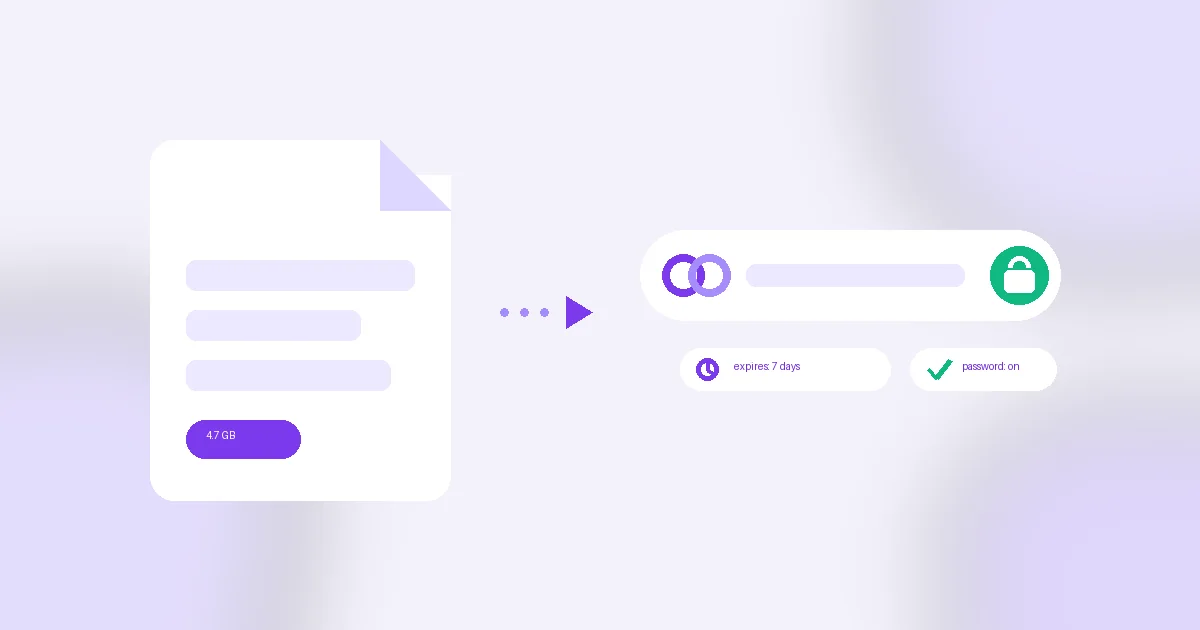
Cloud storage flips the model: the file lives in your drive, and a share link is a controlled window onto it. In VirtualDrive a share link gives you:
- Expiry you choose: 1 hour, 24 hours, 7 days, 30 days — or never, for evergreen hand-offs like a press kit.
- Password protection on the link itself, with server-side rate limiting so passwords can't be brute-forced (we wrote up how that protection works).
- Revocation and replacement: kill a link the moment a deal changes; update the file and the same link serves the new version.
- No re-uploading: the file is already in your drive — creating a link is instant, whether it's 5 MB or 5 GB.
Sending a big file in four steps
- Upload the file (or folder) to your drive — from the browser or the iOS app.
- Hit Share → copy link. Add a password and pick an expiry that matches the situation: 24 hours for a contract, 30 days for a media kit.
- Email the link, not the file. The recipient needs no account — the link opens in any browser with a preview and a download button.
- When the hand-off is done, revoke the link or just let it expire. The file stays in your drive either way.
If you send files to the same people every week
One-off links are for strangers. For a client you deliver to every month, a shared folder beats twenty links: they get a bookmark that always holds the latest files, you get owner/editor/viewer roles and an audit trail. Our client file-sharing checklist covers that workflow end to end, and the freelancer setup shows a per-client folder structure that scales.
Common questions
Does the recipient need an account? No. A share link opens in any browser; password-protected links just ask for the password first.
What's the biggest file I can send? 500 MB per file free, 5 GB per file on paid plans — and because links point at your drive, a multi-file delivery is just a shared folder, with no per-transfer batch cap.
Is a link with "never" expiry safe? Safe enough for public material (a press kit, a portfolio). For anything sensitive, set a password and a short expiry — that combination, plus rate limiting on the password check, is what makes a link private in practice.