If you make photos, videos, music or social posts, your files pile up faster than anyone else's. Raw footage fills the phone, an editor needs the clips today, a brand wants to see a draft but shouldn't download it, and last year's originals are on a drive you can't find.
This guide is a storage workflow in five steps, from the moment you shoot to the moment a project is finished. It works with most cloud storage. Where it helps, it shows how to do each step in VirtualDrive, which gives every account 20 GB free, and it says plainly where VirtualDrive stops.
1. Capture: shoot with room to spare
Video is what fills a phone. Apple's own camera settings put a minute of iPhone 4K video at roughly 170 MB at 30 frames per second and about 400 MB at 60. A ten-minute shoot can take several gigabytes before you have recorded a second take.
- Start every shoot with free space. Running out halfway through a take is the most common way to lose a shot.
- Pick the frame rate you need. If the edit is 30 fps, shooting 60 fps roughly doubles the size for nothing.
- Record audio as its own file when you can, and name it so it matches the video later.
2. Back up the originals before you edit
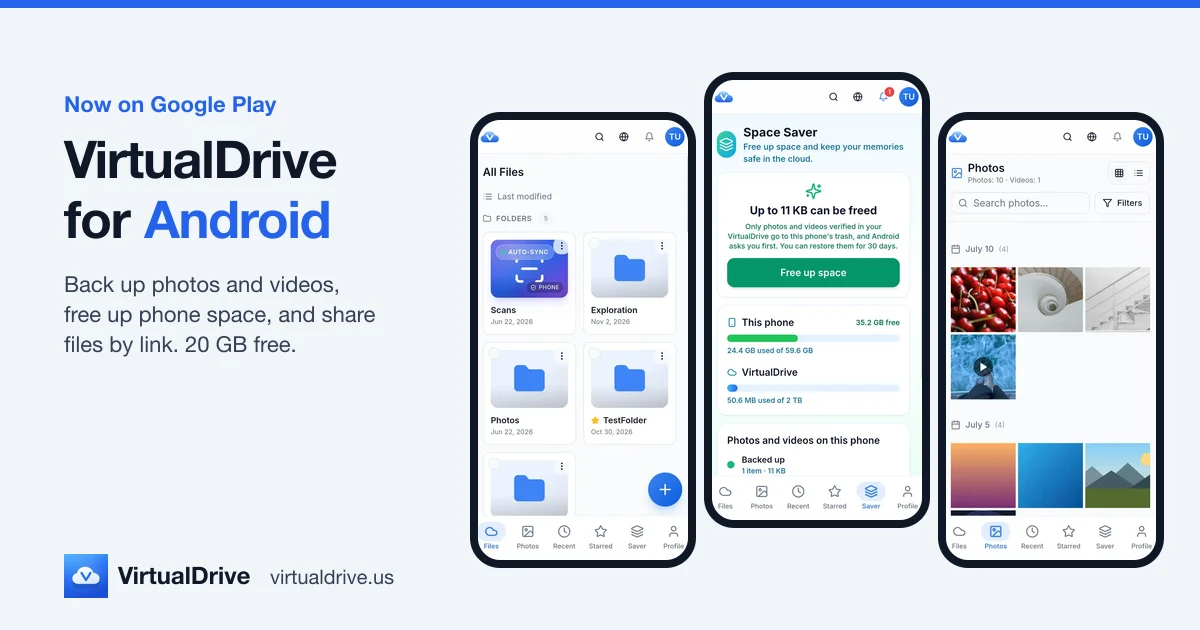
The original file is the one you can never recreate, so get it off the phone first and edit second. In VirtualDrive, Camera Backup on iPhone and Android does this on its own.
- Original quality. The app uploads the file as it is on the phone, with no recompression. On iPhone, a Live Photo is backed up as the still image only.
- In the background. You don't need to keep the app open. On Android you can leave videos out with the Include Videos switch.
- Wi-Fi only if you want it, so a day of shooting doesn't use your mobile data.
- Space Saver then clears backed-up photos and videos off the phone. It only offers items it can match to a backed-up copy, and the phone asks you before anything is removed.
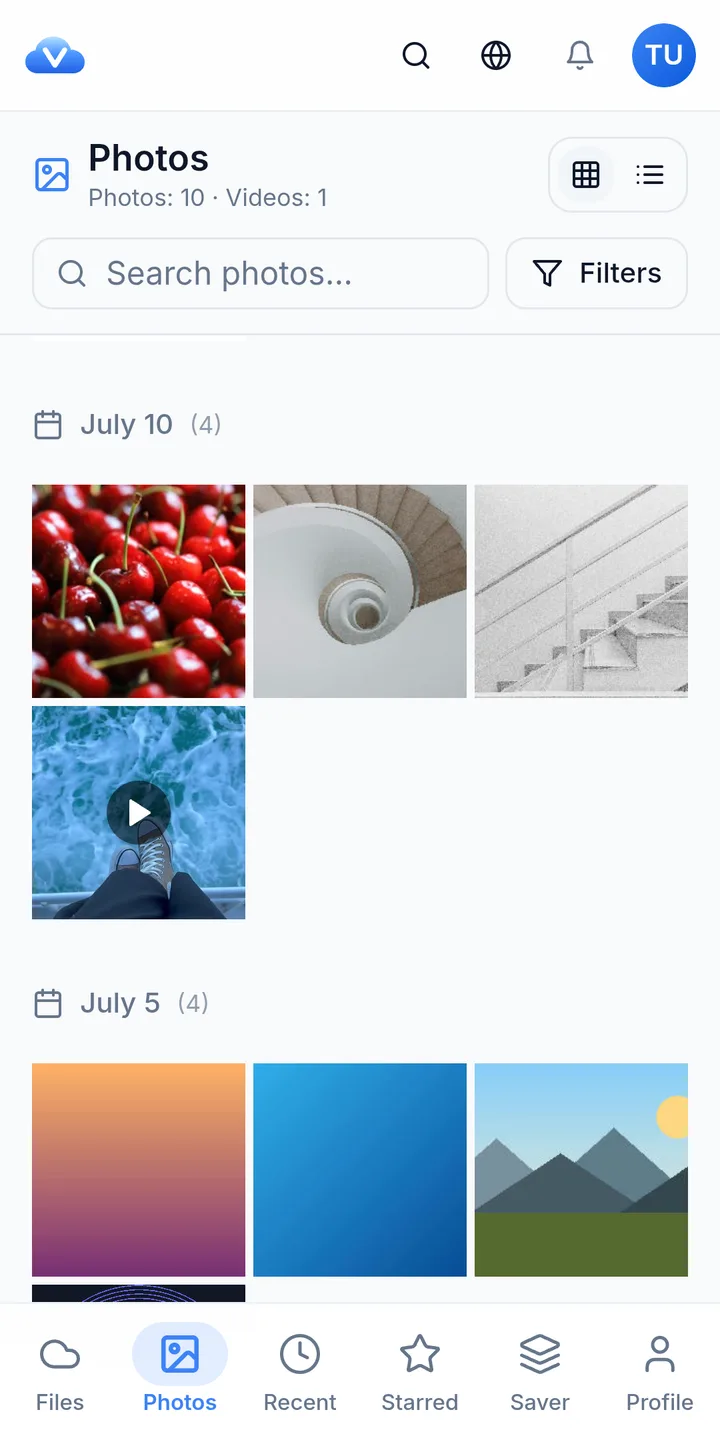
One more thing to know: if an upload is interrupted, that file starts again from the beginning on the next try rather than picking up where it stopped. The phone apps are covered in more detail in VirtualDrive for Android and on the iPhone app page.
3. Organize by project, not by date
Camera Backup sorts by when you shot. Clients, editors and future you think in projects. Once the originals are safe, give each project its own folder and keep the same layout every time, so anyone can find the raw clips without asking.
2026-11 Coffee brand reel
- Raw: untouched camera files and audio
- Project: the editing project file and its assets
- Exports: finished versions, named with the date
- For client: only what the client should see
- Paperwork: brief, contract, invoice, usage rights
In VirtualDrive you can upload a whole folder from the web or the Android app, move and rename files, star the projects you're working on, and search across everything. Anything deleted by mistake goes to the trash first, so you can restore it.
Previews, and where they stop
Photos and common video formats open in the browser and the apps without downloading, which is usually enough to pick selects or check a cut. RAW files such as DNG and Photoshop PSD files don't preview yet; they're stored safely, and you download them to open in your editor. Some iPhone HEVC videos don't play in every browser.
4. Share with clients, editors and brands
Many messaging apps shrink photos and videos when you send them; a link sends the original. In VirtualDrive you can share a single file or a whole folder, and the person you send it to doesn't need an account.
- View only or download. Let an editor download the raw folder; let a brand only view a draft.
- Expiry: never, 1 hour, 24 hours, 7 days or 30 days.
- Password: optional, at least 6 characters. Send it separately from the link.
- Invite by email as a viewer or an editor when someone needs ongoing access to a folder.
- Remove the link at any time and it stops working.
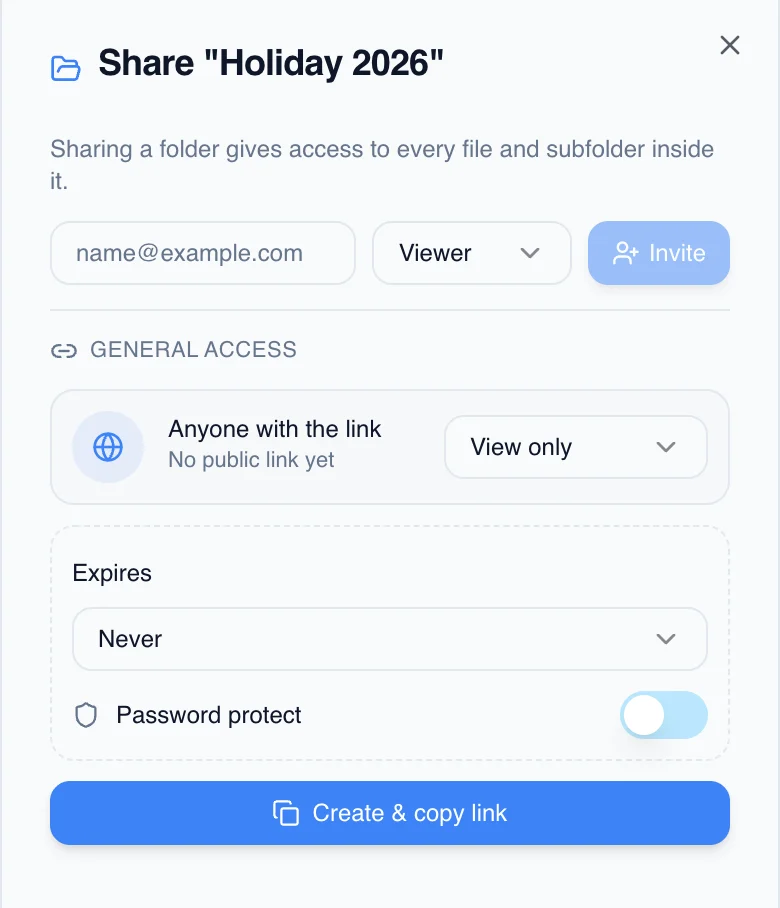
View only stops the download button, not a screen recording. For a draft that mustn't leak, add a password and a short expiry. Our guide to secure file sharing with clients covers when to use which, and Create a share link has the steps.
5. Archive finished work
When a project is delivered, move its folder into an Archive folder so your working space stays short. Decide what to keep: usually the raw files, the final exports and the paperwork. Intermediate renders can go.
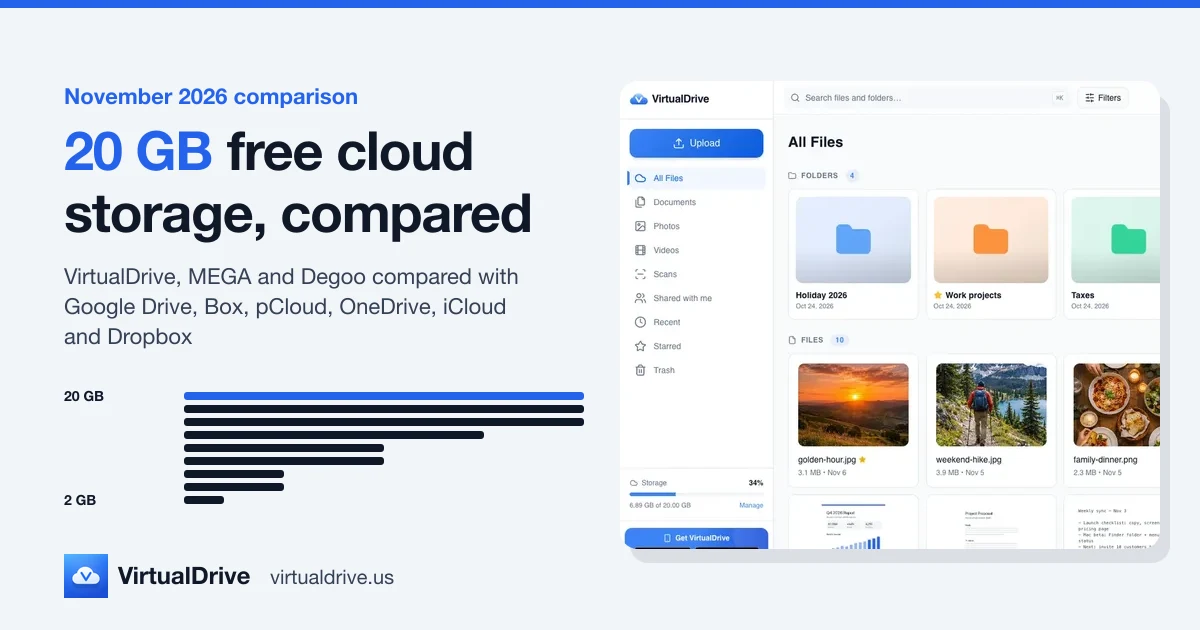
Keep a second copy of anything you can't reshoot, for example on an external drive at home, so one mistake or one lost password isn't the end of it. If your archive outgrows 20 GB, Pro gives you 2 TB for $9.99 a month on the web, and Ultra 5 TB for $19.99. To estimate what you need, see how much cloud storage you need. Photographers will find RAW-specific notes on VirtualDrive for photographers.
What VirtualDrive doesn't do
- No editing. There is no photo or video editor; you edit in your usual apps and store the results.
- No previews for RAW or PSD files, as above.
- A per-file limit: 500 MB on Free, 5 GB on Pro and Ultra.
- Not end-to-end encrypted. Files are encrypted at rest with AES-256 and in transit with TLS; see the security page.
- No desktop app yet. The Mac app is coming soon and Windows has a waitlist. On a computer, use VirtualDrive in the browser.
A short checklist
- Clear space on the phone before every shoot.
- Turn on Camera Backup, and let it finish before you delete anything.
- Know your plan's file-size limit before you film something long.
- One folder per project, with the same subfolders every time.
- Share with links that expire, and add a password to drafts.
- Archive when you deliver, and keep a second copy of the originals.
Start with 20 GB free
Every VirtualDrive account starts with 20 GB, with no credit card and no ads. The same account works on the web, iPhone, iPad and Android.
Frequently asked questions
What is the largest file I can upload?
On the Free plan each file can be up to 500 MB. On Pro and Ultra the limit is 5 GB per file. A longer 4K recording can be bigger than that, so export a smaller version or split the clip before uploading.
Does VirtualDrive compress my photos and videos?
No. Camera Backup on iPhone and Android uploads the original file from the phone, and files you upload yourself are stored exactly as you send them. On iPhone, a Live Photo is backed up as the still image only, without its short video.
Can I preview RAW photos and Photoshop files?
Not yet. RAW files such as DNG and Photoshop PSD files are stored safely, but they don't show a preview; download them to open them in your editor. Common photo and video formats open in the browser and the apps without downloading.
Does my client need a VirtualDrive account to get my files?
No. Anyone with a share link can open it without an account. You choose whether they can download or only view, and you can add an expiry date and a password. Remove the link and it stops working.
Can I work on a folder with my editor?
Yes. Share the folder by email and choose Viewer or Editor. Sharing a folder gives access to every file and subfolder inside it, so keep client folders separate.
Is VirtualDrive end-to-end encrypted?
No. Files are encrypted at rest with AES-256 and in transit with TLS, and you can turn on two-factor sign-in, but VirtualDrive is not end-to-end encrypted.