
When you delete a file or folder, it goes to Trash first. It stays there until you empty the Trash, so you can still get it back. Files in Trash still count toward your storage, so emptying Trash is the quickest way to free space.
On a computer
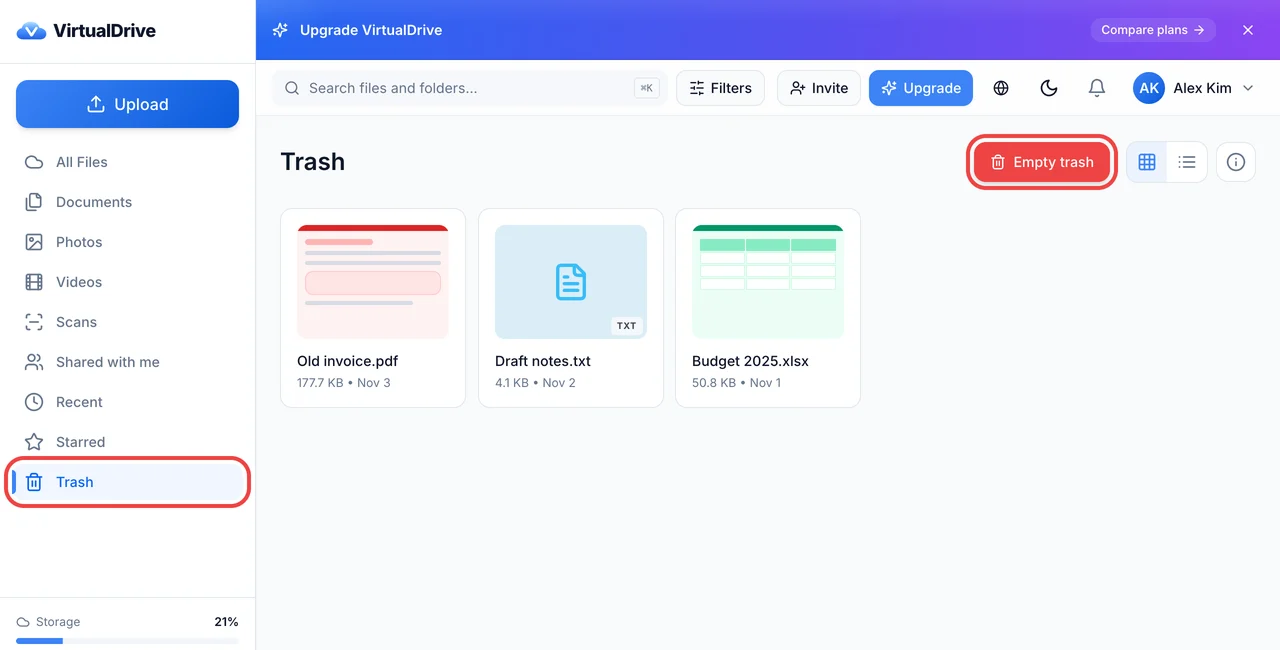
- Open virtualdrive.us/app and sign in.
- Click Trash in the left sidebar.
- Click the red Empty trash button at the top right.
- Read the message and click Permanently delete.
On Android (and in a phone browser)
- Tap Profile at the bottom right.
- Under Account, tap Trash.
- Tap the red Empty trash button, then Permanently delete.
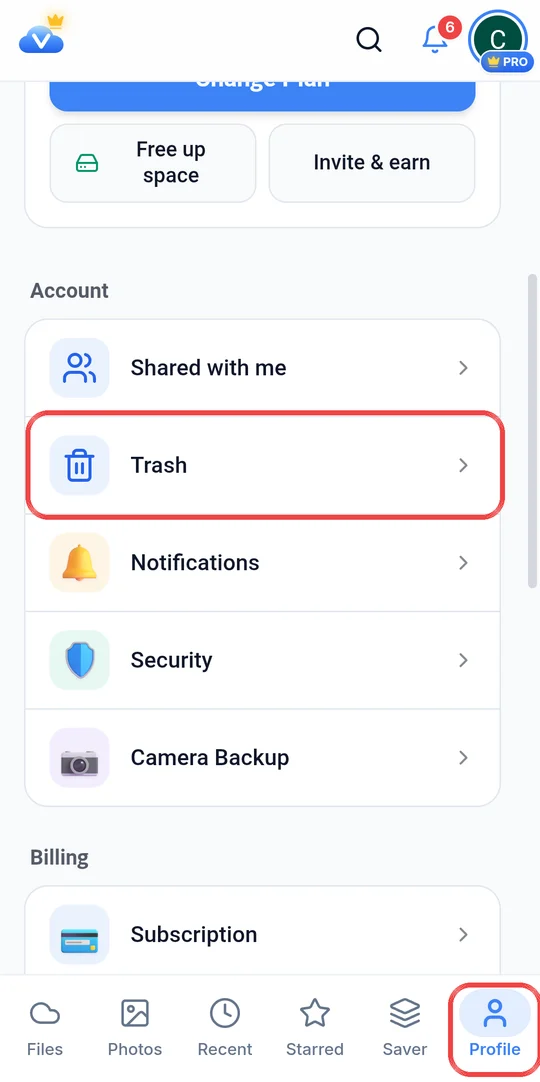
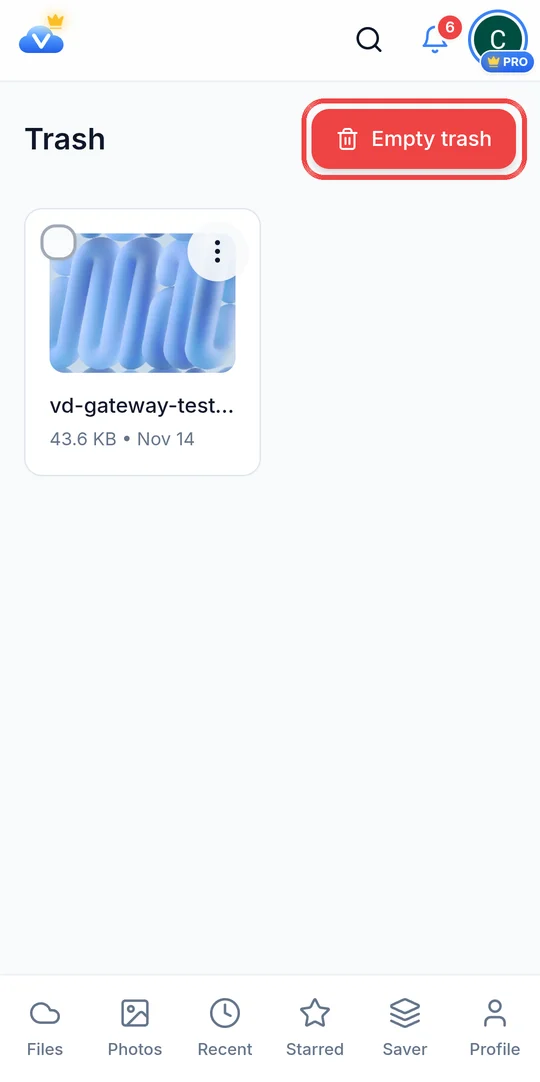
Trash is under Profile from Android app version 0.6.8. On an older version, update the app from Google Play first.
On iPhone
- Open the VirtualDrive app and tap the Files tab.
- Tap the Trash chip in the row at the top.
- Tap Empty at the top right.
- Tap Empty Trash to confirm.
On iPad
Tap Trash in the sidebar, then Empty, then Empty Trash.
Delete only some items
To free space but keep the rest of your Trash, delete just those items. On the web, use the item's menu and choose Delete permanently. On iPhone, tap Select, pick the items, then tap Delete.
Get something back
Before you empty the Trash, you can restore any item: select it and choose Restore. It goes back to where it was.
Emptying the Trash removes the items from your account and frees the space right away. If you emptied it by mistake, email
support@virtualdrive.us as soon as possible. We may be able to recover the items for a short time, but we can't promise it.Things to know
- Trash is not emptied automatically. Items stay until you empty it.
- A share link stops working while its file is in Trash, and comes back if you restore the file.